Business overview
See receivables, overdue balances, active agreements and open work from your records.
The complete feature guide
Explore the records, tools and workflows behind the workspace. From a first client enquiry to stock, payroll, documents and office access.
Looking for your trade’s workspace?
Explore all 26 industry presets253 feature & workflow details across 20 areas
Try a broader term such as “billing”, “files” or “staff”, or clear the filters.
A clear starting point for the records, people and work behind your business.
 Actual app · Sample business records
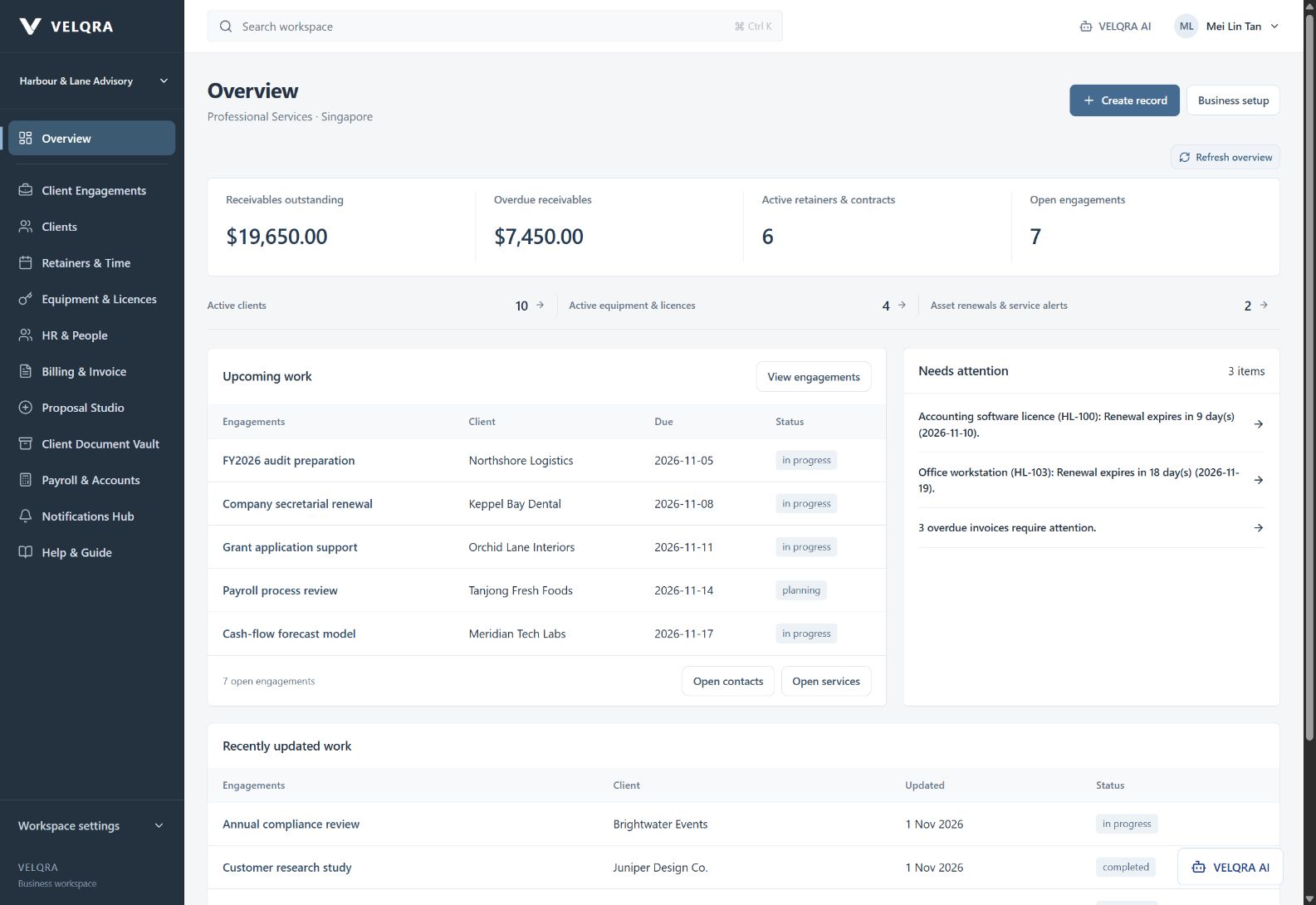
See receivables, overdue balances, active agreements and open work from your records.
Review target dates, work statuses and recently updated engagements or jobs.
Bring overdue invoices, agreement renewals and asset alerts into the overview.
Open workspace search from the header or with Ctrl+K.
Switch between company workspaces while keeping company records separately scoped.
Choose the business trade that sets the module names, starting lists and default workspace.
Adjust enabled modules within the capabilities supported by your trade.
Use a workspace for a one-person business, without staff or supervisor accounts.
Choose country-specific starting labels, currency, timezone, dates and measurement settings.
Set your company name, registration details, logo and document identity.
Follow the onboarding steps or return to the guide when you need it.
Keep the people you work with connected to the work you do for them.
 Actual app · Sample business records
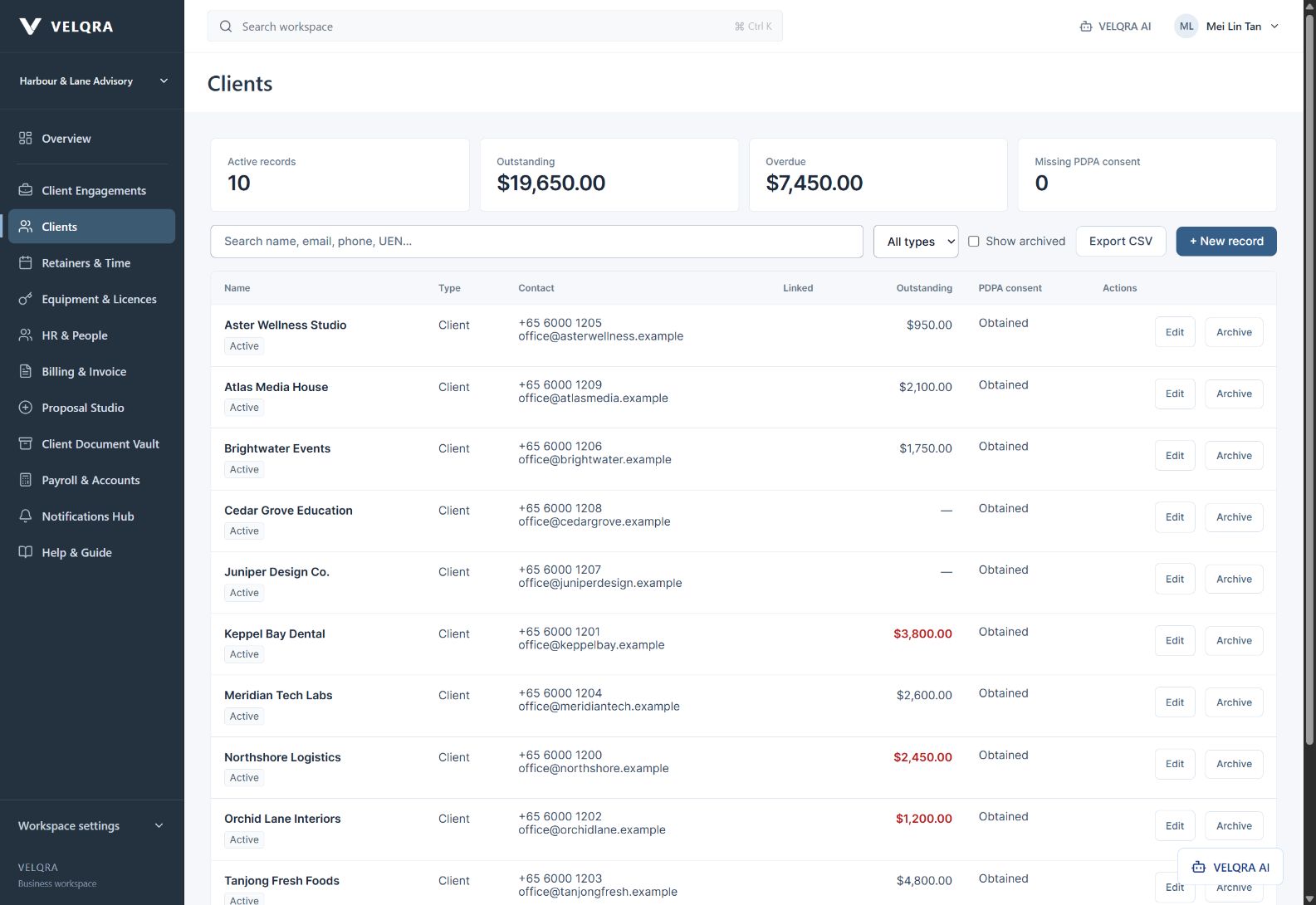
Manage clients, customers, students, guardians, tenants, owners, suppliers, subcontractors and agents as appropriate to your trade.
Record the person or organisation, registration information and tax details.
Keep email, phone, address, postal code and notes with each record.
Link related contacts, including students and their guardians.
Record the number of days allowed for payment against a contact.
See amounts outstanding and overdue against the relevant client.
Record consent, consent date, purposes and do-not-contact preferences.
Find contacts by name, email, phone or registration and filter by type.
Keep retained contact history, archive inactive records and restore when appropriate.
Export contact records to CSV or print/PDF through the available export controls.
Follow delivery from the initial scope through active work and completion.
 Actual app · Sample business records
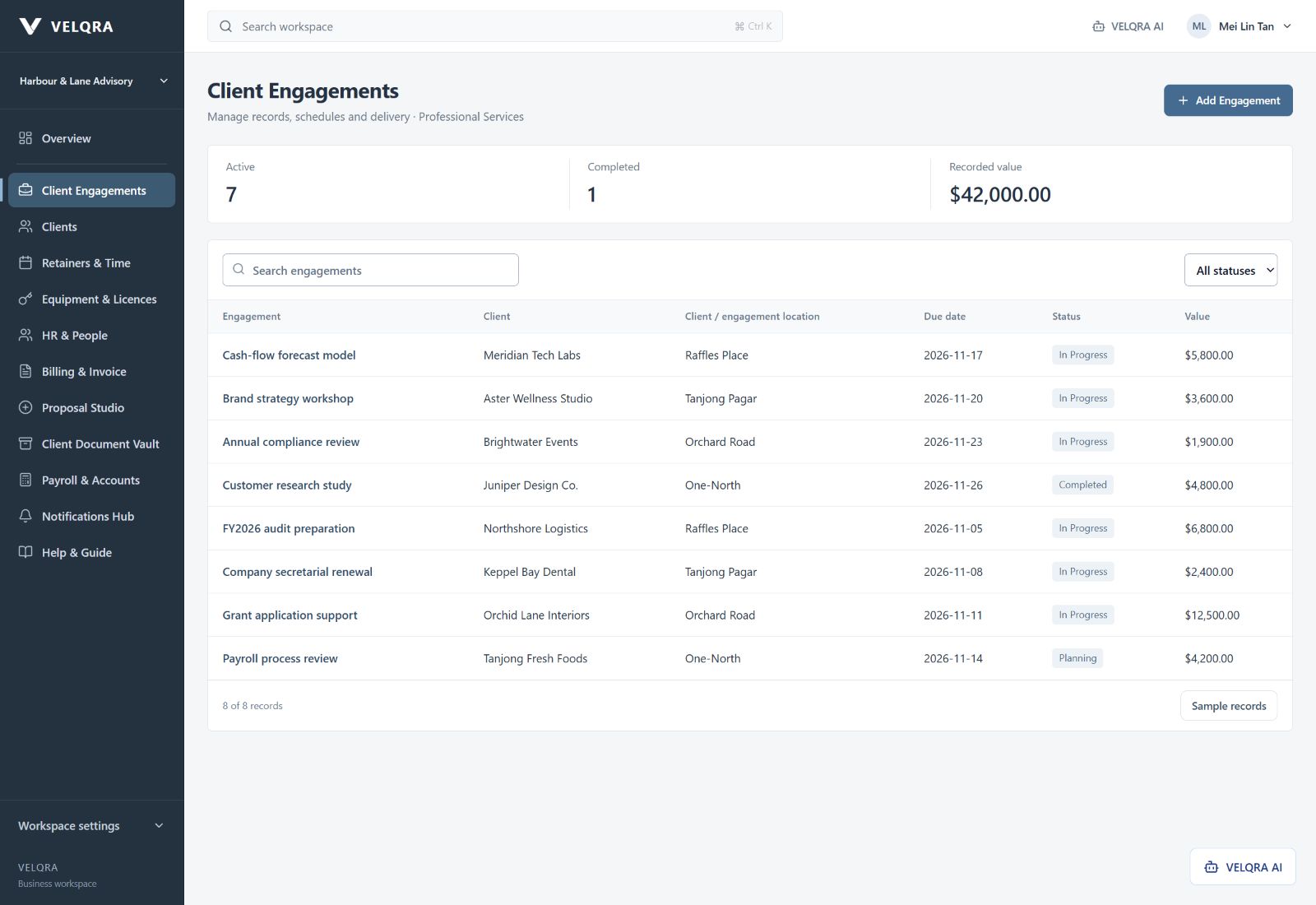
Use engagements, project trackers, shoots, job cards, events or service jobs rather than a generic list.
Record work name, client, location, description and recorded value.
Track start and target dates, planning, active work, completion and archive status.
Find work by its details and filter the register by status.
Maintain tasks and delivery details in supported project workspaces.
Keep project updates and site progress with the relevant work record.
Attach supporting files and work photos to the project they belong to.
Keep contract values, quotations, claims and related commercial records together in project-oriented workspaces.
Assign responsibility, teams and permitted users through the record-access controls.
Complete work and retain its record rather than losing the delivery trail.
The detailed site/project workspace is trade-dependent. A salon booking, consultancy engagement and construction project expose different tools.
Run recurring work, appointments, memberships and service agreements from connected records.
 Actual app · Sample business records
Set weekdays, times, active date ranges and the location or room for recurring work.
Link the relevant staff member and location to a schedule.
Record available capacity and schedule closures for applicable services.
Review overlapping staff or resource schedules.
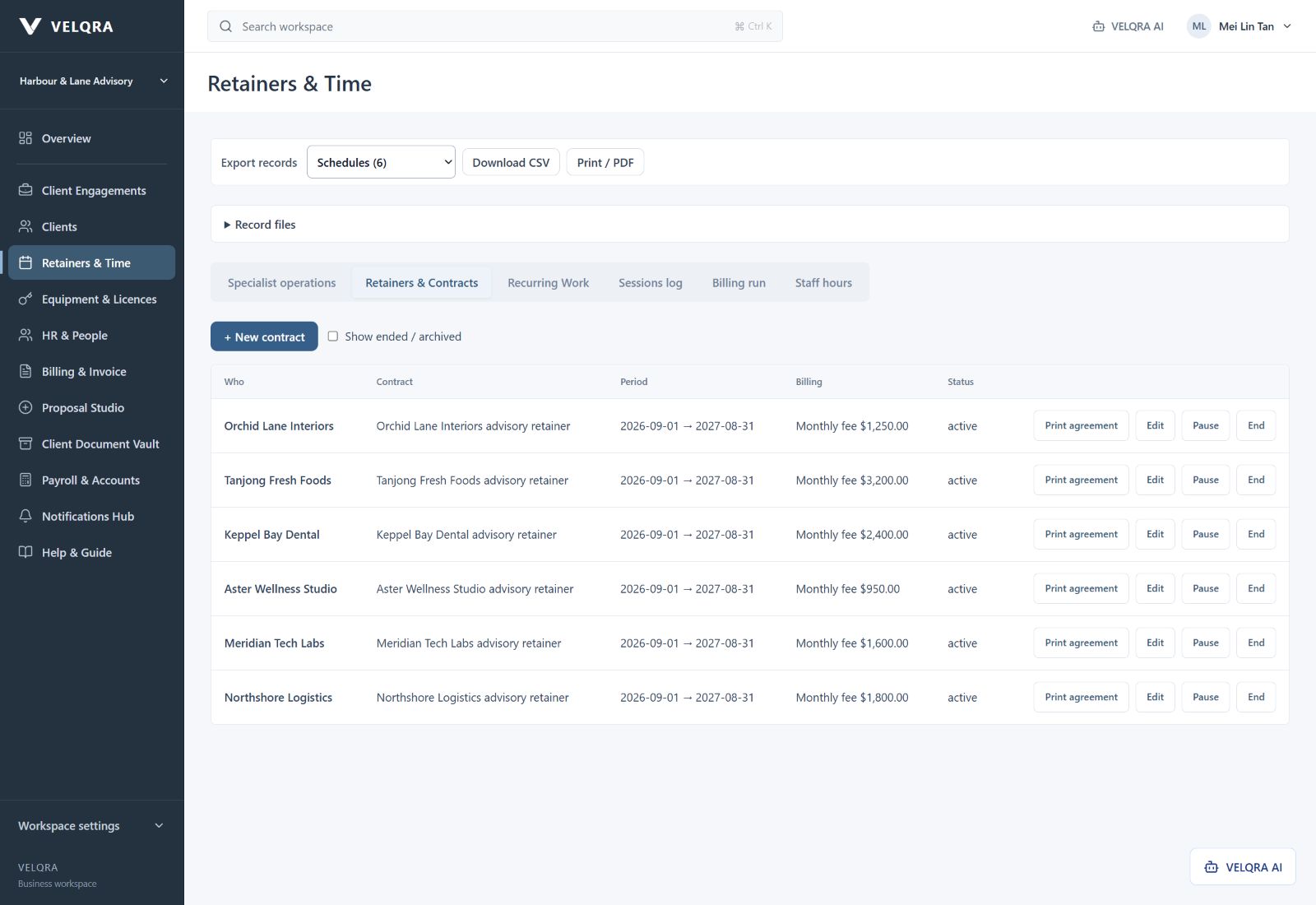
Track waitlist, trial, active, paused, withdrawn, ended and archived agreements.
Use monthly, per-session, per-term, annual, one-off or non-billed agreements.
Set prorated billing and agreement discounts where applicable.
Record additional fees, deposits and deposit receipt/refund state.
Keep agreement dates, notice periods, renewal reminders and refund terms.
Mark present, late, absent, excused or make-up attendance for supported trades.
Track make-up entitlement for education, fitness and other applicable presets.
Bill an eligible linked guardian or payer rather than only the participant.
Preview a billing run and see which agreements are not being billed and why.
Generate invoices from eligible agreements while checking existing billing records.
Summarise recorded session hours for a selected period.
Print agreements and export schedules, agreements and session records.
Attendance, make-ups, guardian billing and resource names depend on the selected trade. Review contract and tax settings before issuing documents.
Build commercial documents around your own scope, services and prices.
Work in a Proposal Studio, Quotation Lab, repair estimate or package builder according to your preset.
Use your business identity on generated quotations and proposals.
Structure the scope into priced items with descriptions, quantities and units.
Reuse stored quotation items and trade-oriented starting libraries.
Calculate document totals using the configured currency and tax settings.
Keep proposal notes and terms with the document being prepared.
Use supported document-import tools to bring existing quotations into the workflow.
Extract supported PDF or scanned-document content when the required local PDF/OCR tools are installed.
Use the quotation/project workflow to transfer relevant scope and client details into project records.
Review the resulting document and use the available print/export controls.
Imported and OCR-extracted content needs review. Local PDF/OCR tooling must be installed for the corresponding extraction paths.
Prepare, issue and follow up billing records without separating them from the rest of the office.
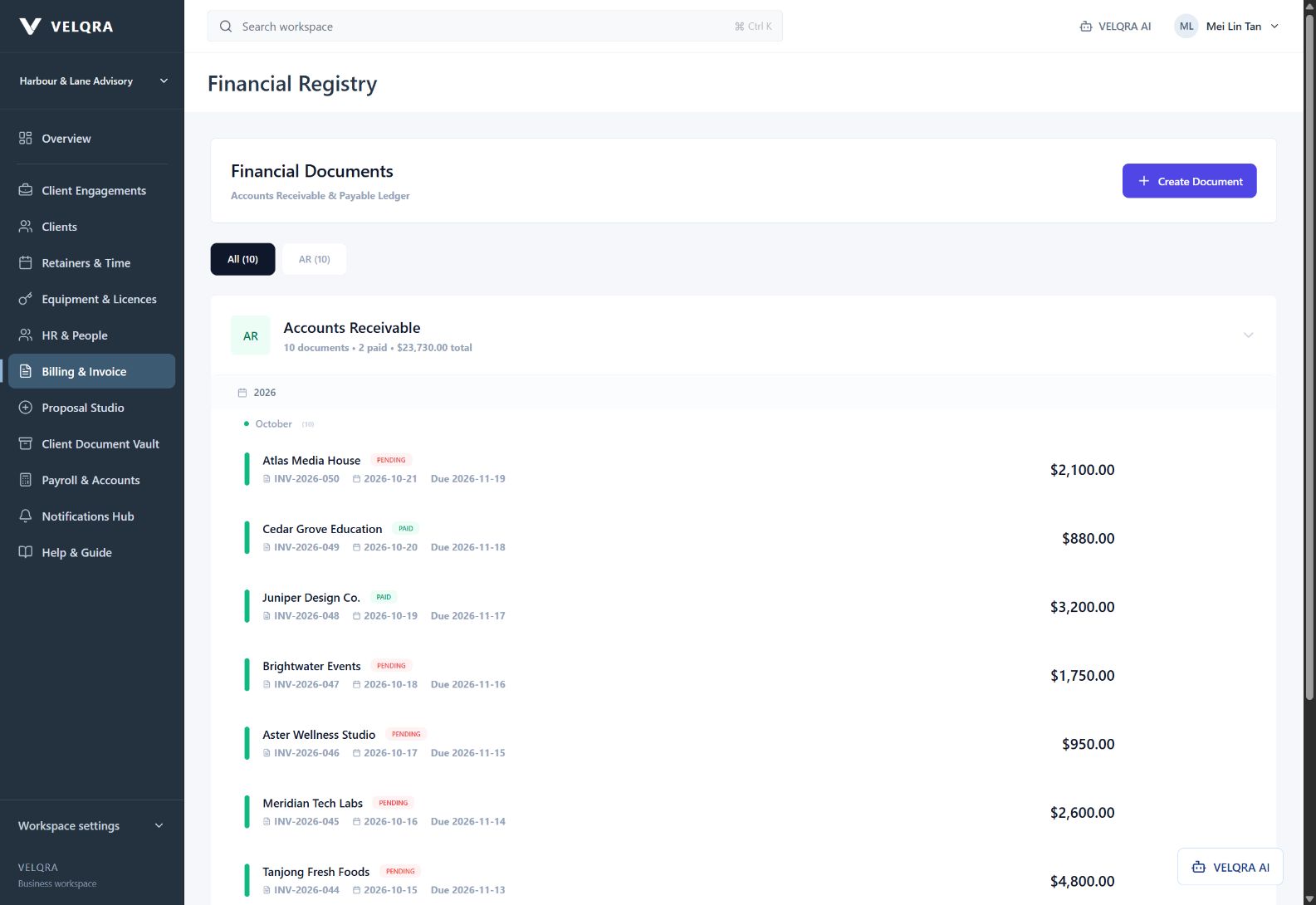 Actual app · Sample business records
Organise customer invoices and supplier-side financial documents.
Build and review invoices before final issue.
Apply the document numbering, currency and tax checks used by the app.
Connect the invoice to the client and retain the billed party details.
Record item descriptions, quantities, rates and applicable tax codes.
See unpaid balances and due dates in the financial register and overview.
Record received payments with amount, date, method and reference.
Keep received amounts alongside the remaining balance.
Review document status and payment progress in the register.
Retain invoice currency and exchange rates for base-currency reporting.
Use configured tax codes and tax-registration status when preparing invoices.
Retain issued document history and use the supported voiding path rather than rewriting final records.
Review and produce documents using the invoice and record-export tools.
Use the invoice payment-link workflow when the payment provider and reachable host are configured.
Recording a payment does not transfer money. Online payment collection needs provider configuration and deployment; it is not enabled merely by installing the desktop app.
Keep the accounting records that sit behind your billing and payroll.
Maintain the recorded financial transactions behind the workspace.
Review account movements through the ledger interface.
Organise transactions using the available account and category settings.
Keep expense descriptions, amounts and supporting details.
Prepare payment vouchers, including payroll-linked vouchers.
Review outstanding payment records in the available accounts/payroll views.
Record supported accounting adjustments through the journal workflow.
Use the period-lock controls to protect closed accounting periods.
Prepare the available close-pack records for review.
Maintain business profiles and document identity used by accounts.
This is a recordkeeping workspace. Country, tax and accounting settings need to match your business and be reviewed by the responsible person.
Know what you have, how it moved and what needs to be ordered.
Keep product names, categories, brands, units, costs, prices and tax codes.
Generate SKUs with category, brand, year, month and sequence tokens.
Track stock movements against the configured inventory locations.
Record initial balances and goods received.
Record stock leaving the business and returned goods.
Record transfer-out and transfer-in movements between locations.
Compare counted stock with recorded balances and prepare adjustment movements.
Identify items below their configured reorder levels.
Prepare and track supplier purchase orders in supported trades.
Keep customer order records with lines, quantities, prices and status.
Receive or deliver part of an order and retain remaining quantities.
Prepare invoice records from supported order workflows.
Map source CSV columns and review imported daily sales and stock movements.
Export the product catalogue, stock history and orders.
Inventory, order and POS tools are trade-specific. Import tools use files; this does not imply a live integration with every POS vendor.
Keep business assets, services and expiry dates in a traceable register.
Track equipment, tools, vehicles, rooms, properties, licences and domains as supported by the trade.
Record tags, serial numbers, plate numbers, owners and responsible people.
Organise where an asset is used and link parent assets when relevant.
Keep acquisition date, supplier and cost.
Record maintenance intervals by days or distance.
Retain odometer information and the latest service reading.
Track separate licence, insurance, road-tax or other expiry items per asset.
Surface upcoming or overdue dates in the overview and asset register.
Record work done, vendor, costs, references and the next due date.
Keep active, in-repair, idle, disposed and archived asset records.
Export the asset register and maintenance history.
Keep staff details and supporting records together, with sensitive access controlled.
Maintain staff and worker profiles with employment and contact information.
Distinguish office and project/site staff where relevant to the trade.
Keep full-time and part-time employment records.
Record monthly, daily or hourly pay details in the authorised people/payroll workflow.
Track joining details and current personnel status.
Use the identity and work-authorisation labels appropriate to the selected country.
Keep applicable permit details and supporting records.
Record employee documents and related files in one register.
Filter valid, expiring-soon, expired and no-expiry worker documents.
Retain relevant training, safety and certification records.
Keep worker history and documents linked to the relevant person.
Adjust supported HR field labels and registry settings.
Identity, salary and other sensitive records should be restricted through the staff permission controls. A stored permit or certificate is not verification by an authority.
Prepare payroll from the recorded people, attendance and pay settings.
Record working days and attendance for the selected employees.
Keep ordinary hours and overtime hours separately.
Use configured multipliers and working-hour settings for the corresponding day type.
Prepare pay using the employee’s configured pay basis.
Record leave dates, type and the payroll treatment selected for the employee.
Apply the supported paid-leave records and configured payroll treatment.
Include authorised adjustments and their remarks in payroll preparation.
Maintain the payroll and contribution settings available for the chosen country.
Prepare payroll for the selected period and review the results.
Review the employee’s payroll breakdown for the relevant run.
Return to retained payroll runs and historical records.
Prepare vouchers using the selected run and employee pay breakdown.
Review payment records and amounts still outstanding.
Use the available backup controls to retain payroll data with the workspace.
Payroll depends on country/company settings and the records entered. Review current statutory rates, eligibility and calculations before paying staff; VELQRA does not certify legal compliance.
Bring documents from across the business into an organised, permission-aware workspace.
Find invoices, quotations, vouchers, project files, worker documents and uploaded records through the vault.
Use the built-in document collections for the relevant business records.
Create supported custom folders and organise them within the vault tree.
Restrict folder visibility through the available role/access controls.
File records into the appropriate folder and retain the assignment.
Keep a document’s classification and associated record details.
Narrow the vault by the available record, folder and classification filters.
Review the supported document approval state in the filing workflow.
Review potential repeated documents through the supported content/duplicate checks.
Attach files directly to contacts, services, inventory and asset records through the file register.
Apply record access and the separate download permission before serving protected files.
Retain document/file history using the available archive and restore controls.
Export supported record datasets for external review.
Use the available record and document print/PDF actions.
Include supported record files and retained status history in the complete workspace backup.
The record-file register supports PDF, PNG, JPEG, TXT, CSV, DOCX and XLSX, with 5 MB per file and 64 MB total in that register. Other vault/import paths have their own requirements. Duplicate checks do not replace malware scanning.
Operational tools that go beyond changing the names on a screen.
Log time by client, engagement, date, minutes and rate.
Turn selected unbilled time for one customer into a reviewable invoice draft.
Create packages with a credit balance and an expiry date.
Use credits against a visit reference and retain the redemption record.
Record earned or redeemed points with a reference and balance checks.
Receive stock with a lot number, quantity and optional expiry date.
Record consumption or disposal with a reason and retained event history.
Prevent the supported consumption workflow from using expired tracked stock.
Define component products and quantities for a manufactured output.
Start production against a bill of materials and record component usage.
Record QC evidence and require a passing check before releasing finished output.
Cancel supported unreleased work orders and retain the stock correction trail.
Link a registration and VIN to a customer.
Record diagnosis, odometer, labour and parts against the vehicle.
Complete an eligible job with sign-off and the corresponding parts movements.
Link tenant, unit and agreement with tenancy dates and overlap checks.
Record tenancy deposit receipts, refunds and deductions with balance checks.
Keep species, care details, emergency contact and vaccination due date.
Check space overlap, record the stay and complete the care checklist before handover.
These tools are selected by trade. Examples: production for manufacturing/food, vehicles/jobs for automotive and applicable services, tenancies for real estate, packages for eligible membership/education trades, and pet care for animal services.
Ask about your records, prepare a supported action, then review it before saving.
Run the VELQRA assistant on the computer holding the workspace.
Ask about balances outstanding, overdue amounts and the largest unpaid invoices.
Ask how much was invoiced over a supported date period, excluding drafts and voids.
Summarise recorded payments for a supported period.
Ask about active jobs, approaching targets and overdue projects.
Ask supported staff-count and contact-breakdown questions.
Ask about upcoming maintenance, service and expiry items.
Ask the assistant to prepare a project or job record with the relevant fields.
Propose a contact or basic staff record for review.
Propose equipment or inventory-item records.
Draft a maintenance log against an existing permitted asset.
Propose a service agreement for an existing contact.
Draft an invoice against an existing contact for review in the normal billing workflow.
Propose issuing a draft invoice, subject to approval, permissions and the usual document checks.
Propose a payment record for money already received; the assistant does not move money.
Propose an employee pay-rate change when the current user has the required payroll access.
Check the proposed fields, make corrections and approve before the record is saved.
Use the current account’s access rules for supported record queries and changes.
Review runtime status and use the available NVIDIA acceleration/add-on path on compatible hardware.
Supported record questions and typed actions have defined boundaries. The assistant is not an unrestricted autonomous operator; existing permissions, validation and approval rules still apply.
Decide which records a person can see and which actions they can take.
Keep an owner account and issue individual staff access appropriate to the business.
Start from the available shared and trade-specific permission templates.
Create reusable company roles with explicitly selected permissions.
Grant access to specific record types such as contacts, invoices, people or stock.
Control view, create, edit, submit, approve, archive, restore, void, export, download, assign and configure actions.
Choose none, own, assigned, team or company scope for supported resources.
Connect the account to its teams and staff record for supported scope checks.
Separately restrict payroll, financial, commercial and sensitive identity information.
Set the responsible user and permitted assignees on supported records.
Grant record export and protected-file download independently of viewing.
Reject supported approval conflicts where the same person owns or submitted the record.
Disable staff access and apply current policy on supported server requests.
Keep record and session access scoped to the relevant company.
Some legacy or privileged workflows are unavailable to restricted staff rather than granting unscoped access. Job titles alone do not grant authority.
Use an office PC as the workspace host, with optional controlled access for other devices.
Use VELQRA on the host PC with its business backend bound to loopback by default.
Enable office sharing with a dedicated interface IP, port, office address and trusted certificate.
Require the owner to authorise a browser before it can reach the shared workspace.
Keep browser pairing separate from the staff member’s own workspace login.
Use the gateway’s 12-hour pairing window; a host restart revokes pairings.
Point a separate VELQRA desktop window at the configured office HTTPS origin.
Reach the office address across a correctly configured LAN or company VPN.
Use the optional tray-host mode to keep the office backend running after its window closes.
Enable the installed edition’s opt-in start-at-sign-in path where configured.
Stop the office host explicitly from the tray and reconnect after restart; saved records remain.
Use eligible trade portal access for the work records explicitly made available to a client.
Use the supervisor path in construction/interior-design workspaces with the required assignments.
Office sharing is off by default. DNS, trusted TLS, firewall rules and VPN routing need separate setup. Local HTTPS integration tests passed; access from a second physical office PC and home VPN still needs verification in the actual network.
Keep the workspace local and choose any optional external file storage deliberately.
Keep the desktop business database on the host computer.
Continue supported work offline between the required subscription checks.
Create the supported workspace backup and retain it for recovery.
Use the owner restore workflow to recover a supported backup.
Configure the supported local workspace file-storage path.
Set up the available Google Drive file-storage provider when external copies are wanted.
Set up the available OneDrive file-storage provider when external copies are wanted.
Set up the available Dropbox file-storage provider when external copies are wanted.
Keep the selected provider and workspace destination associated with the company.
Use the storage model’s business/project/HR/finance destinations for supported documents.
Review pending, syncing, synced, failed, missing and archived file-copy states.
Review storage errors and use the available retry or rescan controls.
External providers are optional and require account/provider configuration and internet access. Enabling them copies supported files outside the PC; local-by-default does not mean cloud copies can never be enabled.
Help people find their way around the workspace and follow up on important records.
Review and create the available workspace notices and dispatch records.
Surface reminders associated with invoices, work, renewals and documents.
Choose a user-role journey in Help & Guide and follow its steps.
Read what the workspace modules are for from the built-in guide.
Use the supported walkthrough and onboarding controls.
Activate the desktop workspace with its subscription licence key or licence file.
Use Licence help for support messages, licence-copy requests and PC-change requests.
Open the existing billing service to manage the plan, computer count and billing details.
Keep the app able to connect at least once every 7 days for subscription confirmation.
Choose a Windows installer or the portable distribution to suit the setup.
Review the desktop update controls and the supported package validation path.
Update installation requires an eligible trusted signed installer and publisher configuration; unsigned/unconfigured and portable paths do not imply automatic updates. Notification delivery outside the workspace depends on its configured channel.
Connect site activity, attendance and permitted client views to the work record.
Review worker deployment and active clock-in information in the available workforce view.
Associate operational staff activity with the selected worksite or project.
Use the supported supervisor attendance workflow and clock-out verification.
Record applicable worker leave/MC from the supervisor workspace.
Record subcontractor company, trade and daily headcount for the selected site.
Post site logs and visual progress updates against the project.
Review site defects and record pending, fixed or verified progress with comments and photos.
Record materials arriving on site and review the project material log.
Open permitted technical documents and supporting project files.
Use supervisor/project assignments and the backend access rules for eligible workspaces.
Give a client the external-access credential for the linked work record made available to them.
Present the relevant work status and shared record information through the supported client portal.
Supervisor tools are specific to construction/interior-design presets. Client portal eligibility is trade-dependent, and external access needs a reachable configured host. They are not public access to the full business database.
Keep authority-source references and operational settings organised for the selected company.
Maintain the source list used by the selected country’s Compliance Watch.
Add, edit and retain the configured authority/reference sources.
Run the supported refresh modes against configured sources when internet access is available.
Retain fetched source snapshots for the available reference view.
Keep regulation sources and snapshots within their supported country/company scope.
Configure the available working-hour, overtime, project and trade-operation defaults.
Adjust the available workspace appearance controls for the application.
Use company setup and supported registry settings to match your operating vocabulary.
Reference-source content and company settings must be reviewed by the responsible person. Source refresh is not automatic legal compliance, and unavailable/retired AI advice paths are not advertised as working features.